Neo MCP
Your coding agent, running AI/ML engineering tasks
You already use Cursor, Claude Code, or Copilot to edit code and answer questions. AI/ML work often needs more: run a training job, optimize or fix an AI agent, compare model evals, iterate on a pipeline — work that takes multiple steps, not one chat reply.
Neo MCP plugs Neo into that chat via the Model Context Protocol. You ask your agent; the agent starts a Neo task; Neo plans, runs, and debugs in your environment and writes code, metrics, and reports into your repo. You review changes in the IDE like any other work.
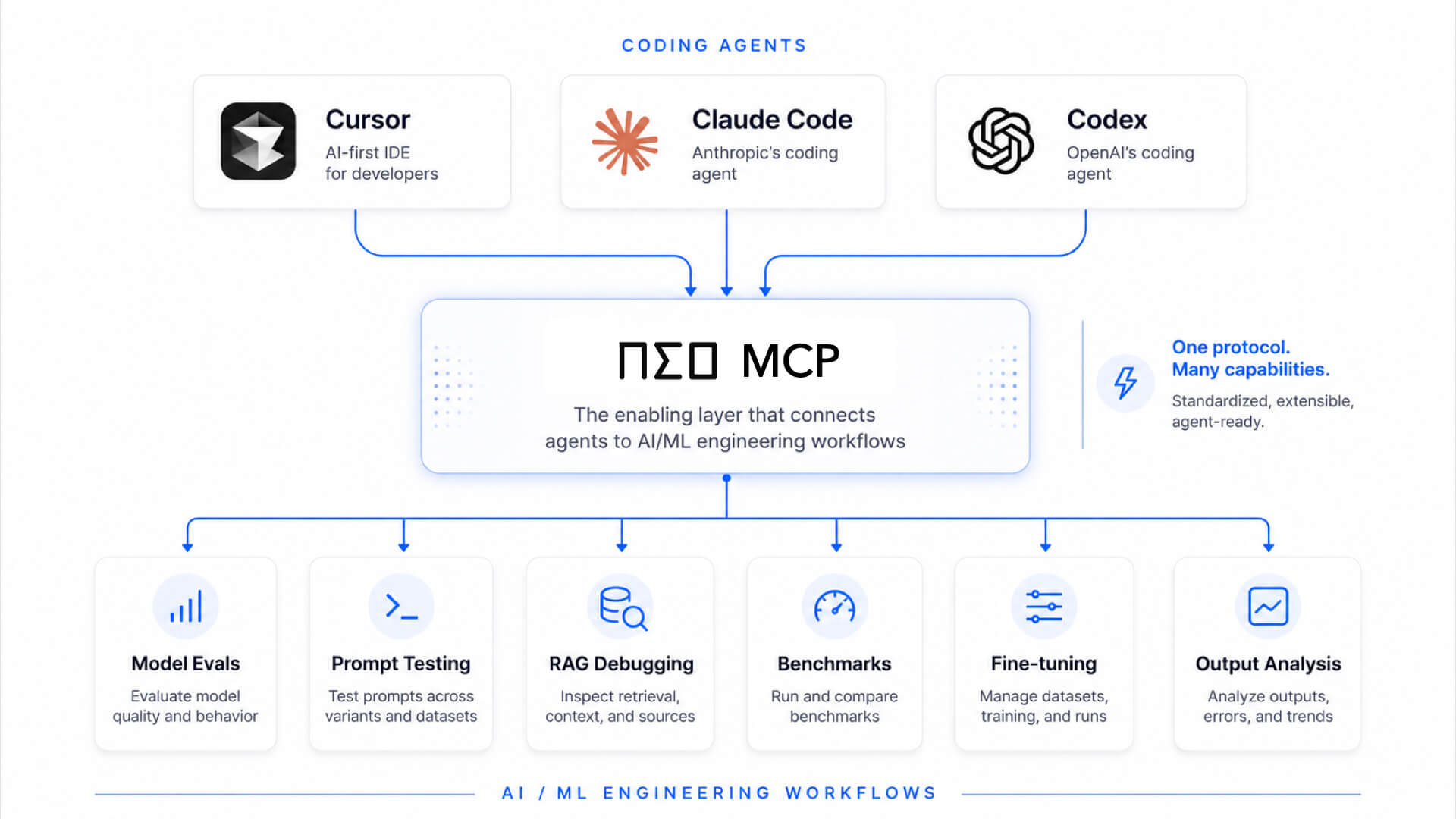
You → coding agent → Neo (via MCP) → runnable artifacts in your repo
Works with Cursor, Claude Code, VS Code Copilot, Windsurf, Zed, Continue, Codex CLI, and other MCP editors.
Set up Neo MCP
Get your Neo API key
Create a Neo key in the dashboard. This connects your editor to Neo.
- Open API keys in the Neo dashboard (sign in if prompted).
- Create a key and copy it. Keys look like
sk-v1-…— treat them like secrets and do not commit them to git.
You will paste this value wherever the examples use sk-v1-YOUR_KEY.
Install Neo MCP
Install the local MCP server with one Python command.
Python 3.11+:
pip install neo-mcpIf pip install neo-mcp fails with error: externally-managed-environment, run:
python3 -m pip install --user --break-system-packages neo-mcpInstalls to ~/.local/ without sudo.
Add Neo to your editor
Choose your editor and paste the matching config with your API key.
Replace sk-v1-YOUR_KEY with your real key in the snippet for your editor.
Claude Code configures MCP through the claude mcp CLI (run these in your system terminal, not inside a chat).
1. Register Neo
claude mcp add --scope user neo \
  -e NEO_SECRET_KEY=sk-v1-YOUR_KEY \
  -- python3 -m neo_mcp
2. Confirm it’s connected
claude mcp listYou should see neo with a green checkmark.
What you can ask Neo to do
Once Neo is connected, ask your coding agent in normal language. The agent will call the right MCP tool when Neo is useful.
- Use Neo to fix this failing training run and save the results.
- Use Neo to benchmark these prompts on our eval set.
- Use Neo to build a RAG pipeline and write the runnable files into this repo.
- Use Neo to fine-tune this model and summarize the eval metrics.
MCP tools
Neo exposes these tools to your editor. You usually do not call them manually; your coding agent uses them after you ask in plain English.
| Tool | What it does |
|---|---|
neo_submit_task | Starts a Neo task and returns a thread_id. |
neo_task_status | Checks whether the task is running, complete, paused, failed, or waiting for feedback. |
neo_get_messages | Reads the task transcript and final output. |
neo_list_tasks | Lists recent or active tasks after reopening your editor. |
Typical flow: submit → check status → send feedback if Neo asks → read messages.
Keys and access
There are three different kinds of keys on this page:
Neo API key
Connects your editor to Neo MCP. Required for setup.
Integrations
Lets a Neo task use external services like GitHub, HuggingFace, Anthropic, OpenRouter, or custom secrets.
BYOK
Lets Neo run on your own Anthropic, OpenAI, or OpenRouter model account.
Give Neo access to external services by telling your editor what to save:
- “Add my Anthropic key
sk-ant-…to Neo." - "Store my GitHub PAT
ghp_…so Neo can push to my repos." - "Save my HuggingFace token
hf_…for downloading models.”
Supported built-in providers are github, huggingface, anthropic, and openrouter. You can also store a custom secret with your own provider name.
Troubleshooting
Most issues show up during setup. Here are the common ones and quick fixes.
Restart your editor after editing the config — MCP config is read at startup. Make sure you’re in Agent mode (Cursor, VS Code Copilot, Continue), and that the config is in the right file for your editor and is valid JSON/TOML. In Claude Code, run claude mcp list and look for neo with a green check.
The command in your config must point at the same Python where you ran pip install neo-mcp. Install Python 3.11+ and confirm with python3 -m pip show neo-mcp. On Windows, use python (not python3) in every command and config. If pip reported externally-managed-environment, use the Linux note in Step 2 above.
Replace the sk-v1-YOUR_KEY placeholder with your real key from the Neo dashboard, with no extra quotes or spaces around the value of NEO_SECRET_KEY. If the key was revoked, generate a new one, then restart your editor.
Ask explicitly — e.g. “Use Neo to…” — and stay in Agent mode. Neo tasks run in the background, so use neo_task_status to check state and neo_list_tasks to find a task again after reopening your editor. neo_get_messages reads the latest output.